

People
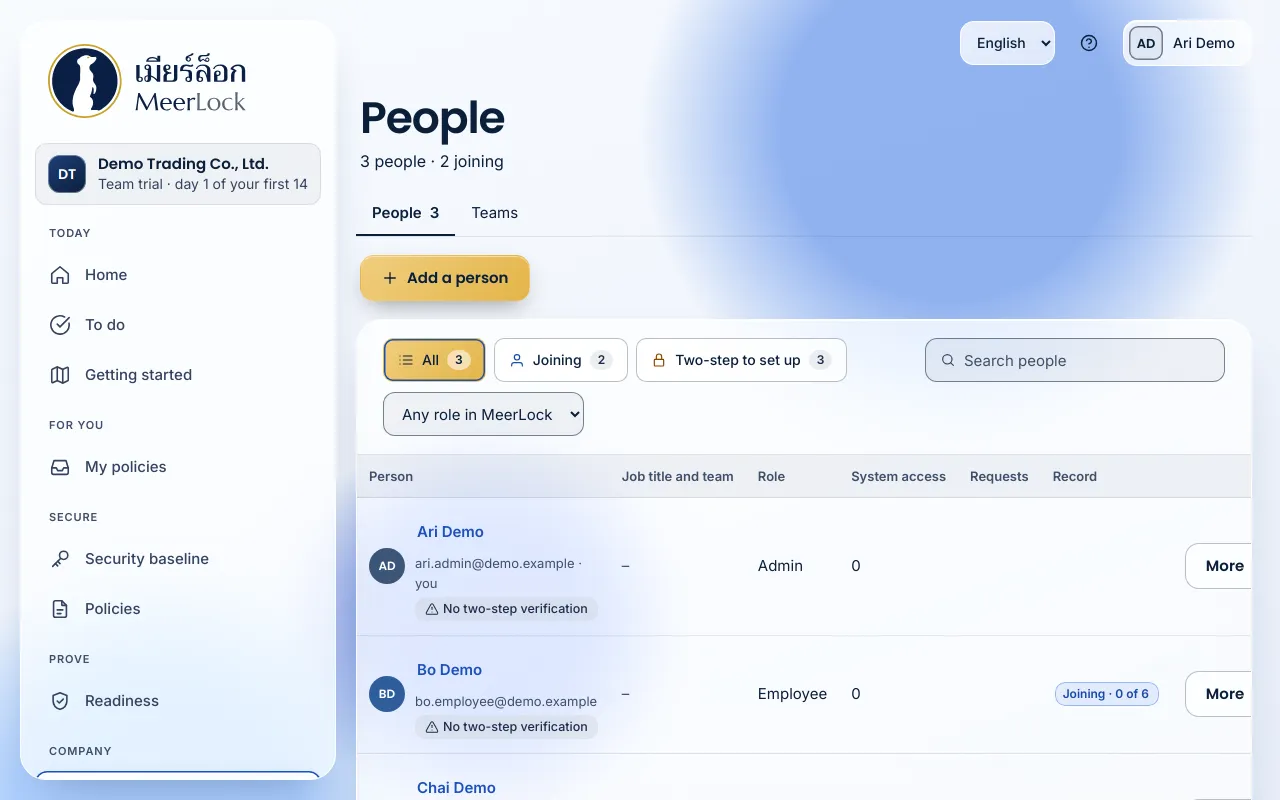
People lists everyone in your company: who they are, what they may do in MeerLock and, from the plans that include it, what they have access to elsewhere. Admins add people here, change their role or team, and start the record when someone leaves.
How to add a person
- Press Add a person, the gold button under the tabs. The page has three steps, Person, Access and Check and send.
- Under Person, enter the Work email, Name, Job title, Team, Manager and Start date, then choose the Role in MeerLock (Admin, Approver or Employee) and the Invitation language. Press Next: access.
- Under Access, pick each system the person needs. The team's usual systems show as chips, and Add all adds them in one go. For each system give the Level, tick Admin rights where it applies, and write the Reason. Press Continue with zero systems if they need none yet.
- Under Check and send, read what will happen: who decides each access line, the rest of the joining record, and when the invitation goes. Choose Invitation timing: On the start date, Now, or When their mailbox is ready (the invitation goes out when that line is marked granted).
- Press the gold button at the foot, such as Add Nok and send 2 requests (or Add Nok when no system was asked for). MeerLock sends the invitation and opens their joining record.
Without access per system on your plan, the page has two steps: the access section of the record is then one step you tick by hand.
What you see in the list
- The line under the title counts people and those joining, changing role or leaving.
- The chips All, Joining, Changing role, Leaving, Access waiting and Two-step to set up narrow the list; they sit at the top of the card, with Search people at their right. Any team and Any role in MeerLock filter further, on the line below.
- Each row shows System access, Requests and Record, with its progress or lateness.
- Press a name to open the person's page: tiles for System access and Record, and what they can do.
- Teams is the tab where you define teams. Press the gold New team button under the tabs, where Add a person stands on the other tab. A team says who must read each policy and which systems are usual.
How to change a role or team
- On the person's row, open the menu and choose Change role or team, or press Edit.
- Save. A change of team or job title opens a role change record by itself, where you keep, change or remove each access.
How to start a leaving
- On the row, open the menu and choose Start leaving, set the Last working day and an optional Reason.
- The leaving record opens with every account the person holds and a remove-by date for each.
- A person who left moves to Former employees. Their history stays, and Restore gives access back if it was a mistake.
When access ends
The Last working day decides when access ends. An earlier day, or today with End access now, ends it at once, and the day stays on the record. Today with End access tonight, or a later day up to 90 days ahead, ends it at the end of that day, Bangkok time: until then the person works as usual and the list shows Leaving on their date, and the row's menu or their page offers Cancel the leaving and End access now.
Good to know
- Admins, approvers and employees see different screens. Who may do what is set by the Role in MeerLock.
- If someone loses their phone, open their page and press Reset two-step verification. See Signing in.
- Access per system, with reasons and approvals, comes with Team and Business. Joining and leaving records come with every plan.
- A plan has a limit on people. Plans and billing says how it counts.