

The trust page
The trust page is a public page for your customers. It shows what you have in place: your frameworks, how many policies are in force, when they were last reviewed and how many people acknowledged them. A customer who asks "how do you handle security?" gets a link instead of a questionnaire.
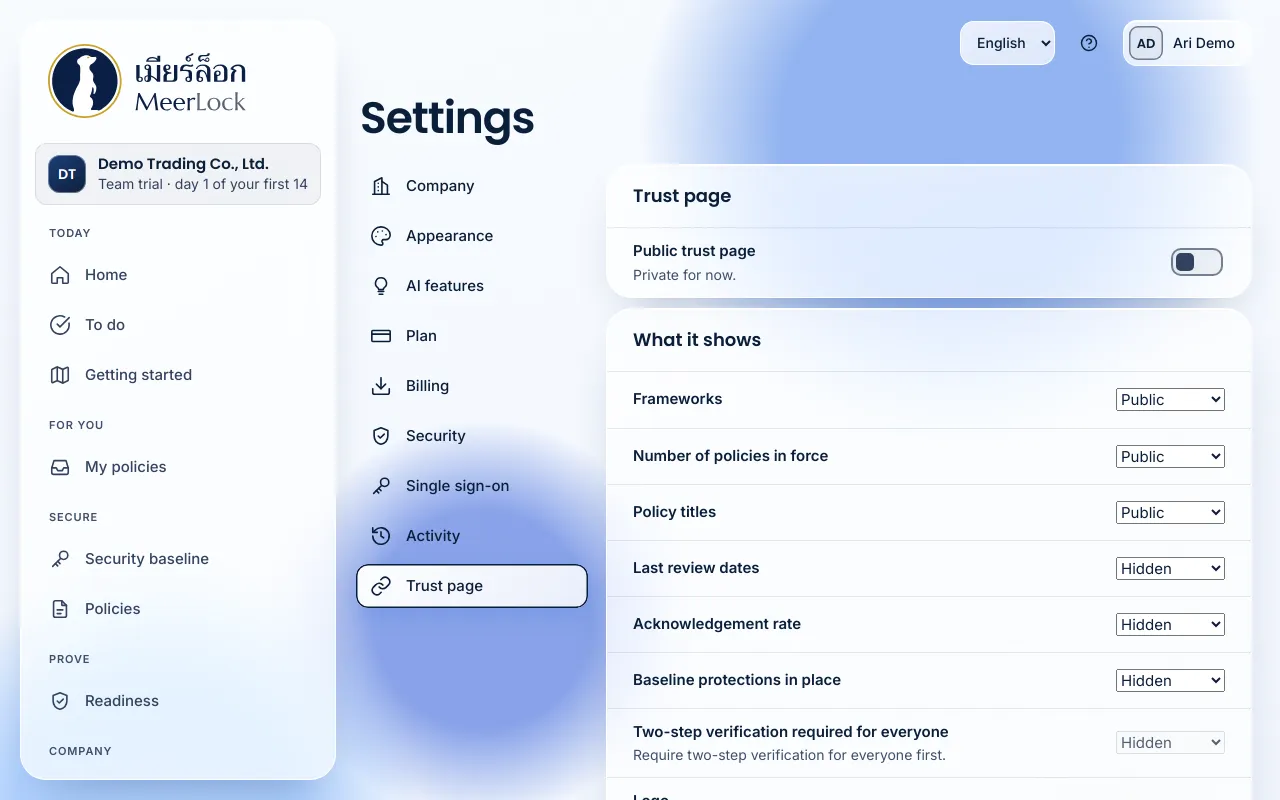
How to publish it
- Open Settings, then the tab Trust page.
- Under What it shows, set each item to Public or Hidden, and to With access where your plan allows it. The items are Frameworks, Number of policies in force, Policy titles, Last review dates, Acknowledgement rate, Baseline protections in place, Two-step verification required for everyone, Key contacts and your Logo. If the logo is missing, add one in Appearance first.
- Under More on the page, write an Introduction and a Security contact email. Choose Your own address, 3 to 40 letters, numbers or hyphens.
- Press Preview to see it as a visitor does.
- Switch on Public trust page. Anyone with the link can then see it. Copy the link with Copy link, or press Open.
- If a link was shared too widely, press New link. The current link stops working.
Policies on the page
Under Policy texts to share, choose for each policy Public, With access or Hidden. Policies anyone can read lists the public ones. A policy set to With access is read only by the people you give access to.
How to give someone access
- Under People with access, press New access and enter the Name, Company, Email and how many days it is Valid for (days), with an optional Note.
- Press Create, with Tell them by email ticked if you want MeerLock to write to them.
- The visitor opens the page, chooses "I have access" and gets a link by email, valid for 15 minutes.
- The list shows Last opened, how many times, and Revoke access ends it at once. Show the visitor's name on the pages they open adds a watermark.
- Where your plan allows it, turn on Let visitors request access. Requests wait under Access requests for Approve or Decline.
Good to know
- A basic trust page comes with every plan. The full page comes with Essentials, Team and Business. Policies With access come with Team and Business. Visitor access requests come with Business.
- Leave Let search engines list it off until you are happy with the page.
- The page shows only what you ticked, as it is now. It never exposes a draft.
- The step "Publish your trust page" in Getting started is done once the page is public.