

My policies
My policies lists the policies your company has asked you to read. Read each one, then acknowledge it to say you have read and understood it. Your company can see who has acknowledged what, so this is how your part counts.
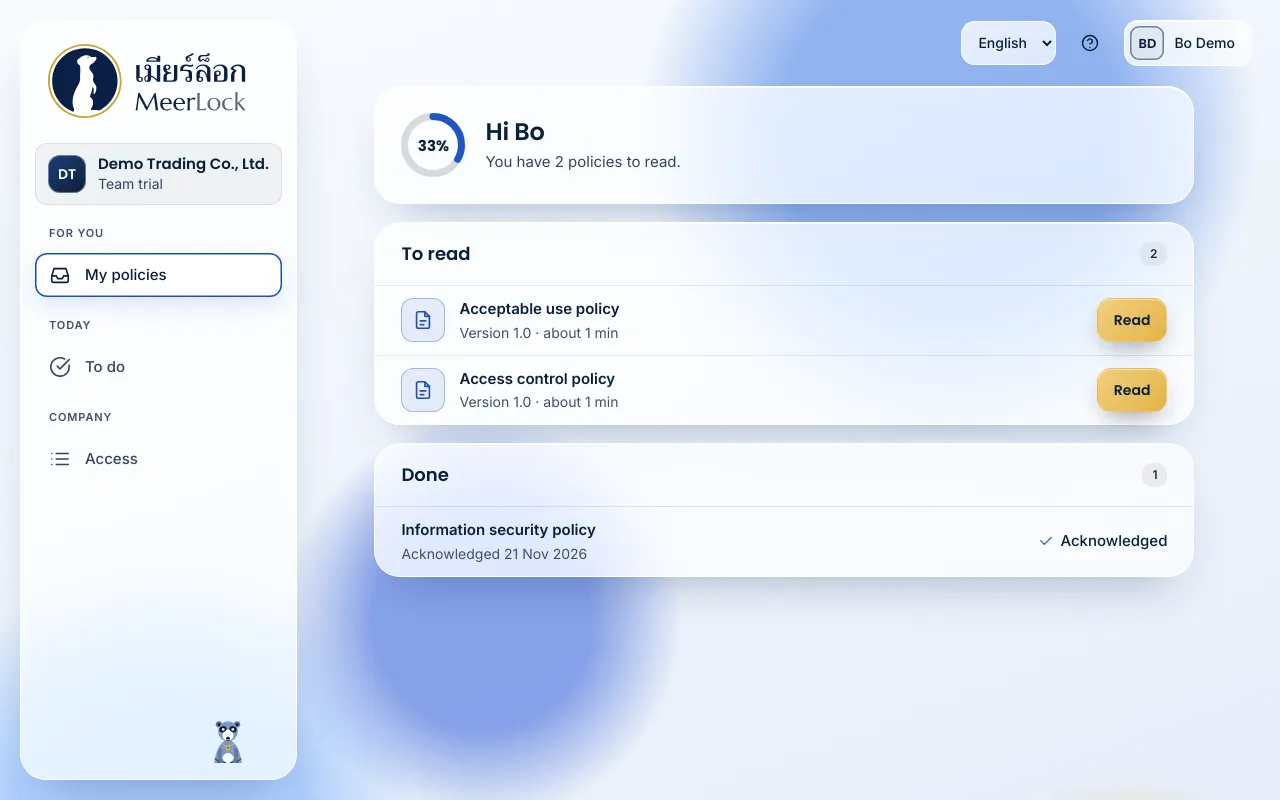
How to read and acknowledge a policy
- Open My policies. Employees land here when they sign in; otherwise choose it in the menu.
- Under To read, find the policy. Each row shows its version and about how long it takes. Press Read.
- If there is a Your 1-minute memo, read it first. It helps you remember the key points. It does not replace the policy.
- Read the full policy. You can switch language where the policy has more than one.
- Press I have read and understood, at the bottom.
- If the policy has a quick check, answer each question, then press Acknowledge. Press Back to the policy to read it again first.
- You see "Acknowledged. Thank you." and go back to your list.
What happens to the quick check
When you acknowledge, a list shows which answers were right and the correct answer to each. Press Got it to close it.
How to find a policy you have done
- Scroll to Done. Each row shows the date you acknowledged it.
- Press a row to read it again.
- On a policy, press Download PDF to keep a copy. On the memo, Save as picture saves it as an image.
Review requests
When your company starts a policy review, a policy you have already acknowledged comes back under To read with Review by and a date. Read it and acknowledge it again by then. If the date has passed, it shows Was due and the date.
Good to know
- Other tasks for you, if any, are under To do. Home shows a line such as "1 thing in To do".
- If a new version is published while you read, you are asked to read the newer one.
- You are all caught up means you have read and signed everything. You are told when a policy needs you.
- Policies that are not meant for you do not appear.