

Your first 14 days
Admins get a Getting started page that lists, in order, what to do in the first 14 days. A step is ticked only when the work is really done, never by hand. The first two stages, week 1 and week 2, are what the progress ring counts.
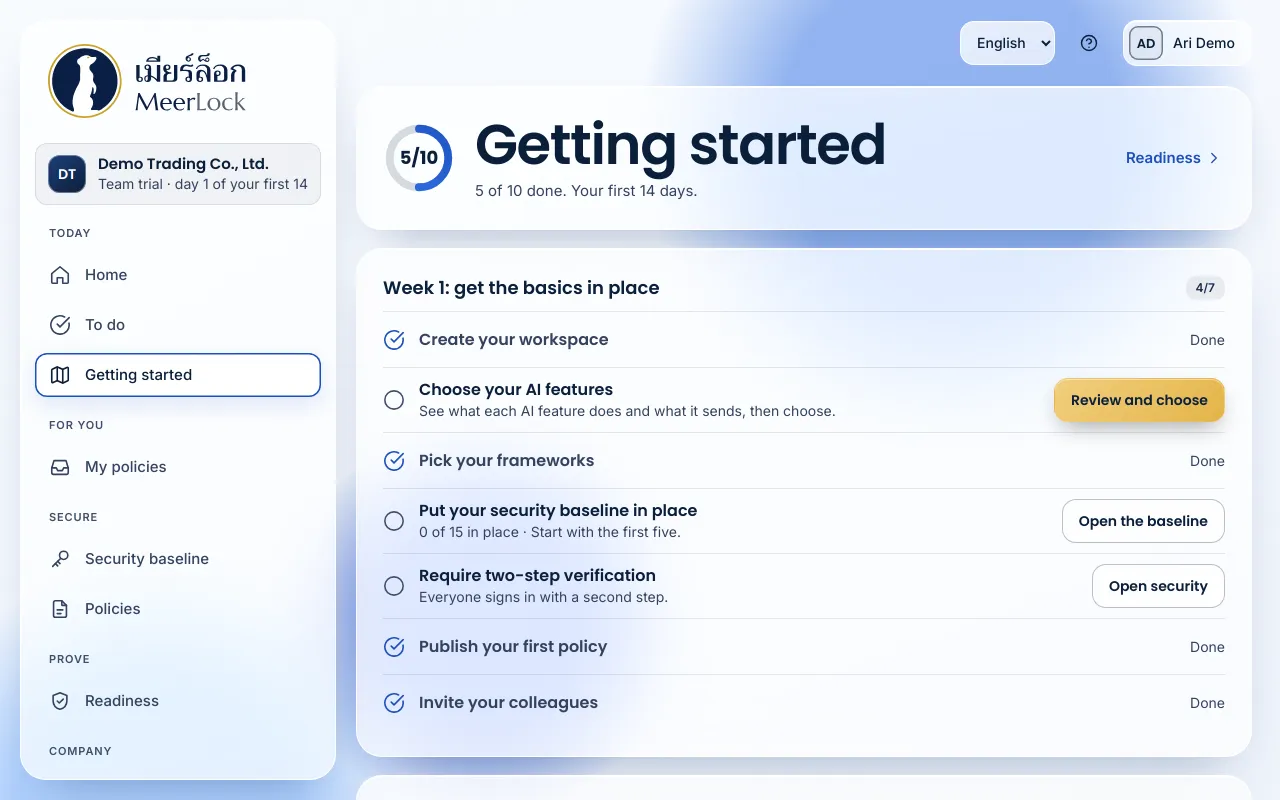
How to open it
- Sign in as an admin and choose Getting started in the menu.
- Or, on Home, press All the steps under the next step.
- Each step has one line on why it matters and one button that goes straight to the place to do it. The next step to take has the gold button.
Week 1: get the basics in place
- Create your workspace. Done when you sign up.
- Choose your AI features, where your plan includes them. Press Review and choose, read what each feature does and what it sends, then turn on what you want or keep them all off.
- Pick your frameworks. Your privacy law is already in. Press Pick frameworks to add more where your plan has room.
- Put your security baseline in place. Press Open the baseline and start with the first five controls.
- Require two-step verification. Press Open security. See Signing in.
- Publish your first policy. Press Open drafts, send a draft for approval, then approve it. With no policies yet, See the starter policies offers short drafts to edit.
- Invite your colleagues. Press Invite people, which opens People, where each new person is added with Add a person.
Week 2: prove it
- Get your first acknowledgement. Press Open my policies, read a published policy and acknowledge it.
- Publish your trust page. Press Open the trust page.
- Start your risk register, where your plan includes it. Press Build the register. See Risks.
- Name your Incident Commander, where your plan includes incident response. Press Add contacts. See Incidents and exercises.
- Create your Security overview. Press Create the overview for one page that shows a customer what you have in place.
After day 14: keep it running
A calmer list with no count of its own: set up your teams, make it yours with your colours and logo, Set up joining and leaving records (the step that opens the joining and leaving records), turn on automatic reminders, add your key suppliers, run a policy review, invite your auditor and more.
Good to know
- Some steps show only when your plan includes them. A step your plan does not include is shown locked and is not counted.
- Getting started leaves the menu 14 days after the company was created, or earlier once every step is done. After that, Home links to the steps still open.
- To hide the card on Home, use Show on the home page at the bottom of the page.
- Steps still open also appear in your To do.
- Frameworks are chosen in step 3. Frameworks and your plan says how many each plan takes.