

Policies
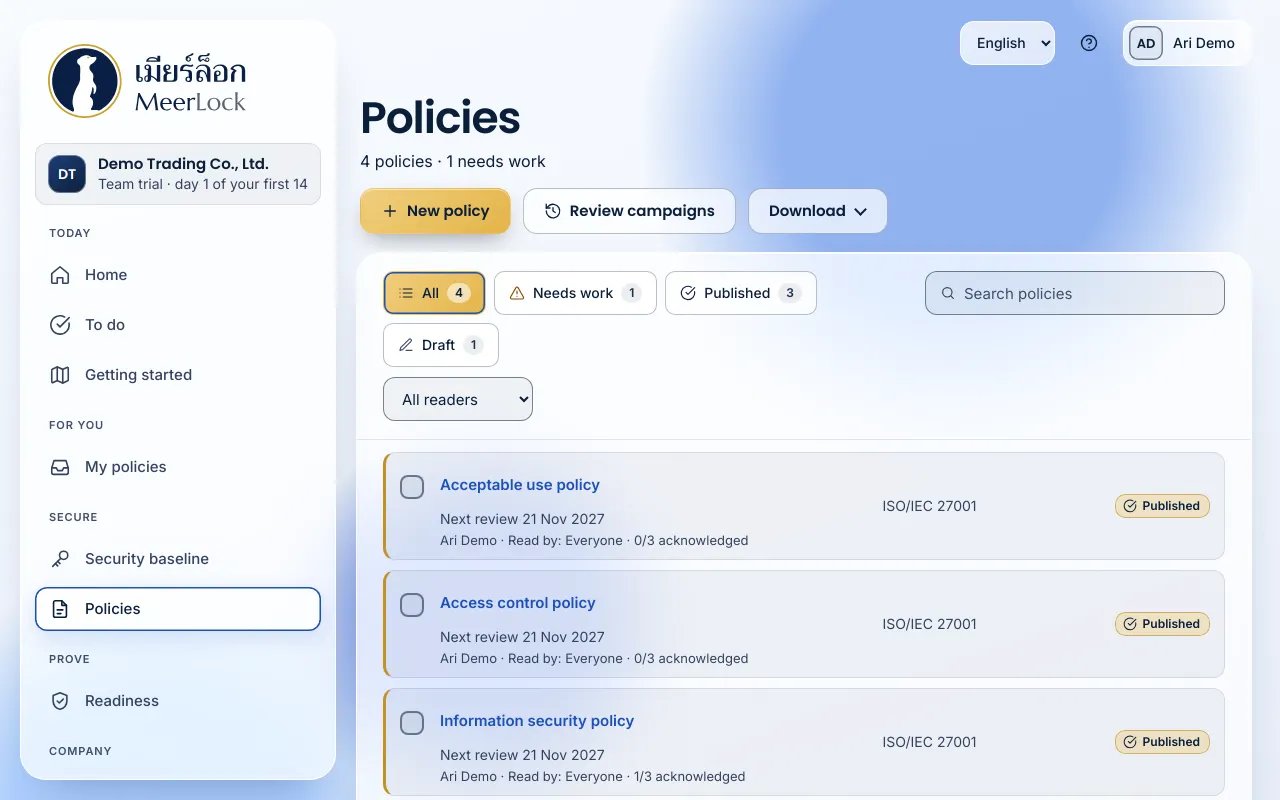
Policies is the library of your company's written rules and procedures. Admins create them, send them for approval and publish them. People who can approve decide whether each one goes out. Everyone it is for is then asked to read and acknowledge it.
How to add a policy
- Press New policy, the gold button under the title.
- Choose Upload Word or PDF to bring in your own document, or Blank page to write it in MeerLock.
- For a blank page, enter a Title, choose Who must read it (Everyone or Only some teams), the Owner, the Frameworks it serves and Review every.
- Press Create and write the text.
- Press Submit for approval, choose the Approver and add a note if you like.
How to start from drafts
- With no policies yet, the page offers ready drafts, for example Add the 4 drafts. Press it, or No thanks to decline.
- Edit each draft, then send it for approval. You publish each policy yourself.
- For the full set, choose Policy packs at the same place, or in the menu.
How to approve a policy
- Open the policy that is Pending approval.
- Press Approve and publish. Everyone it is for is asked to read and acknowledge it.
- Or press Request changes, say what should change and press Send back. The policy returns to the author as a draft marked Changes requested.
How to find and group policies
- Use the chips at the top of the list to filter by stage. Needs work shows every policy that is not published and current.
- Type in Search policies, or use All readers to show one team's policies.
- Tick a policy: a row appears above the list with Select all for every policy shown. Then press Set who must read it to change their readers together, or Save as one PDF.
- Under the title, Review campaigns and, when AI is on for your company, Suggest who must read are buttons. The suggestion reads policies in force or sent for approval, never a draft; the toast tells you how many drafts it left out. Apply all suggestions lists each change with its reason before it is applied. Open Download for All published policies as one PDF and Who has read what (CSV).
What the stages mean
| Stage | Meaning |
|---|---|
| Draft | Still being written; employees see it once it is published. |
| Pending approval | A version waits for an approver. |
| Published | In force, and its review is not near. |
| Review due soon | In force, review within 30 days. |
| Review overdue | In force, its review date has passed. |
How to ask everyone to read again
- Press Review campaigns, under the title.
- Press Start a review and give it a Name. The default is the year, such as "Policy review 2026".
- Under Policies to review, choose All policies in force or Only some.
- Set a Soft deadline, when reminders start, and a Hard deadline, when a missing acknowledgement counts as overdue. Turn on Repeat every year to run it again by itself.
- Press Start. See progress shows who is done, pending or overdue, by team. Campaigns has the detail.
How to add a language
- Open a draft and choose Add a language.
- Pick MeerLock's translation where the policy came from a pack, Translate with AI, or Write it myself for an empty page beside the English.
- A single policy covers the AI translation step by step.
How AI tags frameworks
- Switch on Set frameworks automatically under Settings, then AI features. It is part of Team and Business.
- Once a day, MeerLock reads the published policies that are new or changed and tags the frameworks each one serves. Drafts are not read. When you add a framework, every published policy is read once more that night.
- Each company also has four checks a month to start yourself. Press Check frameworks with AI on this page or on Readiness, then Check frameworks. The dialog says how many credits are left. Unused credits do not carry over.
- A check reads every published policy again and also looks at the tags already there. It takes a tag off only when the AI says it is wrong, and it says why. Frameworks you chose by hand are never taken off.
- When the AI doubts a framework you chose, the policy shows AI disagrees with its reason, the AI disagrees filter lists those policies, and a row waits in your To do. Press Keep to confirm your choice, or take the framework off the policy.
Good to know
- Each row shows the owner, who must read it and how many have acknowledged.
- To change a published policy, open it and press Start new version.
- Only people who can approve can be named Approver.
- By plan: Review campaigns (Team and Business), Translate with AI (Team and Business), All published policies as one PDF (Team and Business). A plan that lacks a feature leaves its button out.
- For one policy in depth, including AI summaries and who has read it, see A single policy.